Your 2025/26 Self Assessment tax return covers 6 April 2025 to 5 April 2026, and it’s due online by 31 January 2027. As a sole trader, you report your business income and expenses, HMRC works out the Income Tax and National Insurance on your profit, and you pay what you owe by the same date. This guide takes you through it step by step.
In short
- Send your return online by 31 January 2027 and pay by the same date. Every Self Assessment date is in our deadline guide.
- You need your Unique Taxpayer Reference (UTR), your HMRC sign-in details and a year of income and expense records.
- Most sole traders with a turnover under £90,000 fill in the short self-employment pages.
- Check the tax calculation before you send. You can still correct the return for 12 months after the deadline.
- You can file through HMRC’s own online service or through commercial software that works with HMRC.
Do you need to send a tax return?
You need to send a Self Assessment tax return if you were self-employed as a sole trader and earned more than £1,000 from self-employment in the tax year, or if HMRC has asked you to send one (GOV.UK).
If you started working for yourself during 2025/26 and haven’t registered yet, register now. The registration deadline was 5 October 2026, and you can only file once you have a UTR. Our guide to becoming self-employed in the UK explains how to register.
What do you need before you start?
Gather these first, so you can finish the return in one go:
- Your UTR: the 10-digit number on letters from HMRC, and in your personal tax account and the HMRC app. After you register, it usually arrives by post in around 15 days (GOV.UK).
- Your HMRC sign-in details: your Government Gateway user ID and password. If you’re new to HMRC online services, you now create a GOV.UK One Login instead, which usually means proving your identity with photo ID such as a passport or driving licence (GOV.UK). Set this up well before the last week of January.
- Your business income from 6 April 2025 to 5 April 2026: sales, invoices, cash, card payments, tips and payments from platforms.
- Your business expenses for the same period, with receipts.
- Your other income: a P60 from a job, rent, savings interest or dividends.
- Pension contributions and Gift Aid donations, which can lower your tax.
- Student loan details, if you have one, because repayments are worked out on the return.
How do you file online? Step by step
Step 1: Sign in to HMRC online services
Sign in with your Government Gateway user ID or GOV.UK One Login and choose your Self Assessment tax return for 2025/26 (GOV.UK). You don’t have to finish it in one go: you can save it and come back.
Step 2: Tell HMRC what to include
The online return starts with questions about your year: whether you were self-employed, employed, had property income and so on. Your answers decide which pages you see. Answer yes to self-employment.
Step 3: Fill in your self-employment pages
This is where your business figures go: your business details, your turnover and your expenses. The next section explains each one.
Step 4: Add your other income and reliefs
Add any employment income, savings interest or other income, plus pension contributions and Gift Aid. If you have a student loan, say so here.
Step 5: Check your tax calculation
Before you submit, HMRC shows a calculation of the tax and National Insurance you owe, and any payments on account for next year. Read it carefully. If a figure looks wrong, go back and fix it now. Save a copy too: after you submit, you can’t view the calculation for up to 72 hours (GOV.UK).
Step 6: Submit and keep your confirmation
When you submit, you get a submission reference. Save it or take a screenshot.
What goes on the self-employment pages?
Short or full pages?
There are two versions. The short pages (SA103S) are for simpler businesses with a turnover under £90,000. The full pages (SA103F) are for a turnover of £90,000 or more, or for less common situations. When you file online, your answers take you to the right version (GOV.UK).
Turnover
Turnover is all the money your business took in during the tax year, before expenses. Include cash, card and bank payments, tips and money from platforms.
Expenses: actual costs, flat rates or the £1,000 allowance
You have three ways to account for your costs:
- Actual costs. Add up your allowable business expenses, such as materials, phone, software, insurance and travel. Our list of allowable expenses for sole traders shows what counts.
- Simplified expenses. For some costs you can use HMRC’s flat rates instead of working out the real amount (GOV.UK). For 2025/26, that’s 45p a mile for the first 10,000 business miles by car or van and 25p after that. If you work from home for 25 hours or more a month, you can claim £10 to £26 a month depending on the hours. See our guide to the sole trader mileage allowance.
- The trading allowance. Instead of claiming any expenses, you can deduct £1,000 from your income. You can’t claim expenses as well, so this only pays off if your real costs were under £1,000 (GOV.UK).
Big purchases for the business, such as tools or a laptop, can usually be deducted too. Cars follow their own rules, so check before you claim one (GOV.UK).
A worked example
Say your turnover was £36,000 and your allowable expenses were £6,000, so your profit was £30,000. You live in England and had no other income. Using the 2025/26 rates:
| Amount | |
|---|---|
| Profit | £30,000 |
| Personal Allowance (tax-free) | £12,570 |
| Income Tax: 20% of £17,430 | £3,486.00 |
| Class 4 National Insurance: 6% of £17,430 | £1,045.80 |
| Tax and National Insurance for 2025/26 | £4,531.80 |
You don’t pay Class 2 National Insurance: with profits over £6,845, it’s treated as paid.
Because the bill is £1,000 or more, HMRC also asks for payments on account towards 2026/27: two payments, each half of this year’s bill, so £2,265.90 each. If this is your first year, you pay £4,531.80 plus the first payment on account of £2,265.90 by 31 January 2027, which is £6,797.70 in total. The second £2,265.90 is due on 31 July 2027 (GOV.UK).
That first January is the one that catches people out, so it’s worth knowing the figure early. If your income has dropped since, you can reduce your payments on account.
Rates differ in Scotland. Our guide to sole trader tax in the UK covers rates and bands in more detail.
Can you file through software instead?
Yes. HMRC’s online service is free, but you can also send your return from commercial software that works with HMRC (GOV.UK). The advantage is that the return comes from records you’ve kept during the year, so there’s nothing to rebuild in January. Our guide to Self Assessment software compares the options.
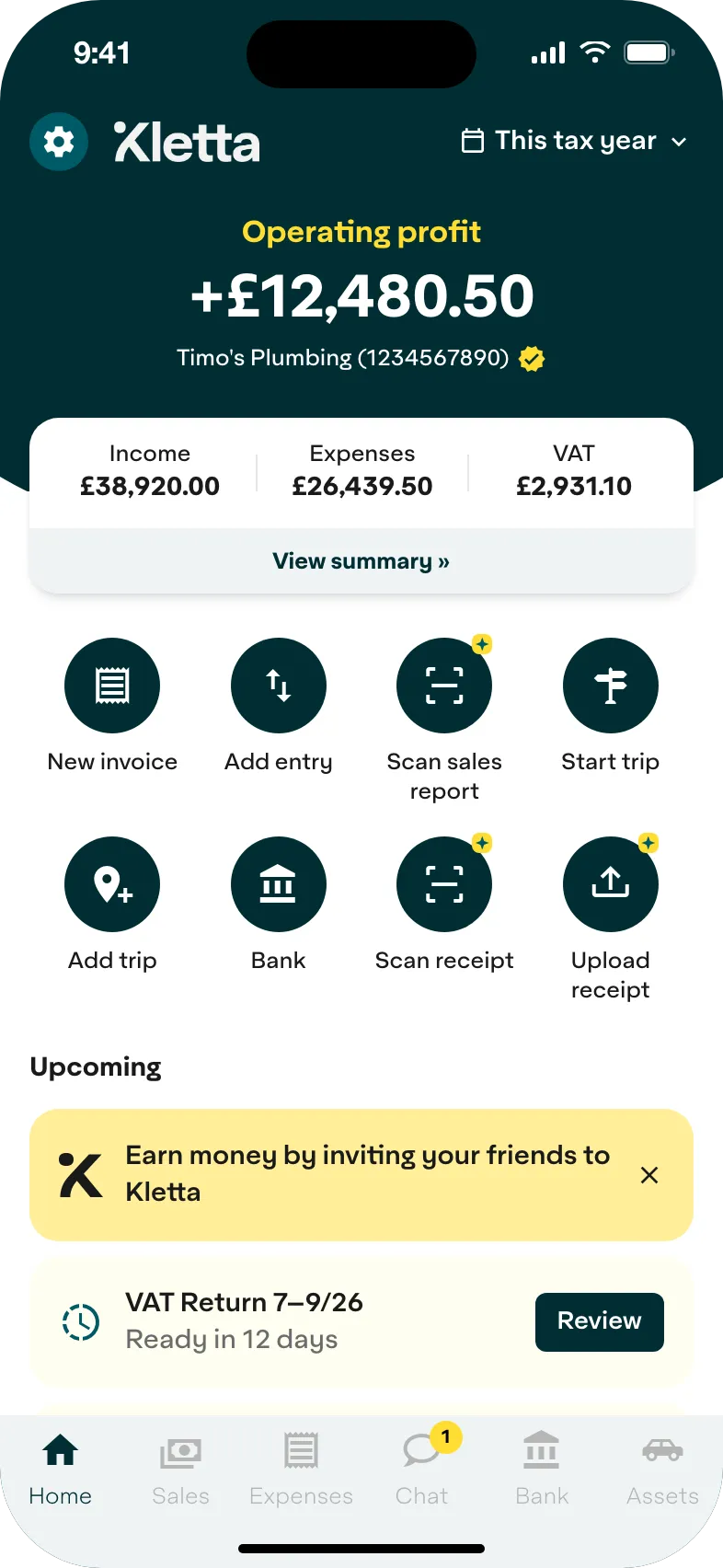
Kletta builds your tax return from the income, invoices and receipts you add during the year. You check the figures, then send it to HMRC from the app. Solo is free to use, and you pay a Self Assessment filing pass of £29 when you send your return.
Does this return affect Making Tax Digital?
Your 2025/26 return is sent the usual way, even if you joined Making Tax Digital in April 2026. But it also decides whether Making Tax Digital applies to you next. If your qualifying income on this return is over £30,000, you need to use Making Tax Digital from 6 April 2027. Qualifying income is your total turnover from self-employment and property, before expenses (GOV.UK).
Our MTD deadlines for 2026/27 explains what changes once you’re in.
How do you pay your tax bill?
Pay by 31 January 2027. That date is a Sunday, so unless you pay by Faster Payments or by debit or corporate credit card, your payment needs to reach HMRC on the last working day before it, Friday 29 January (GOV.UK). For a bank transfer, your payment reference is your 10-digit UTR followed by the letter K (GOV.UK).
If you can’t pay in full, you may be able to spread the cost. Our Self Assessment deadline guide explains payment plans and what happens if you pay late.
Common mistakes to avoid
- Waiting until late January to set up your HMRC sign-in. Your UTR comes by post, and you may need to prove your identity first.
- Leaving out other income, such as a job, rent or savings interest.
- Claiming personal costs, such as your commute or the private share of your phone.
- Throwing away receipts. Keep your records for at least five years after the 31 January deadline (GOV.UK).
- Forgetting the first payment on account in your first year.
Frequently asked questions
When can I file my 2025/26 tax return?
Any time from 6 April 2026 until the deadline. Filing early doesn’t mean paying early: the bill is still due on 31 January 2027, but you know the amount sooner.
What if I make a mistake on my return?
You can correct it within 12 months of the deadline, so until 31 January 2028 for your 2025/26 return. Wait 72 hours after filing before you make a change (GOV.UK).
What happens if I file late?
You get a £100 penalty if your return is up to three months late, and more after that. Our deadline guide has the full list.
Do I need an accountant to file?
Not if your affairs are simple: most sole traders can file themselves. If you’d like help, see what an accountant costs a sole trader.
Do I need Making Tax Digital software for this return?
No. Your 2025/26 return is filed as before, whether or not you joined Making Tax Digital in April 2026.
Kletta is HMRC-recognised Making Tax Digital software for sole traders. Keeping your books and building your tax return is free, and you pay only when you send it to HMRC (see pricing).